How to Give a Buyer Google Analytics and Search Console Access Safely
A seller's guide to sharing Google Analytics with buyers: the five GA4 roles, adding a Viewer step by step, data restrictions, Search Console users, and moving the property at closing.

When you sell a website, buyers want to see the traffic for themselves. Screenshots aren’t enough, because they can be edited and they only show what you choose. The simplest way to build trust is to give Google Analytics access directly, with a role that lets the buyer look at everything but change nothing. This guide shows how to give Google Analytics access safely, which role to choose, what else to share, and how access changes when the sale closes.
For the whole selling process, see our guide on how to sell a website. Buyers will often pair your analytics with an SEO due diligence review.
Key takeaways
- Add the buyer as a user with the Viewer role; never share your Google password.
- Give access to the website’s property only, not your whole Analytics account.
- Offer Search Console access as a restricted user too.
- Remove access promptly if the deal doesn’t go ahead.
- At closing, either move the property to the buyer’s account or give them Administrator.
Why buyers ask for direct access
Traffic is one of the main reasons people buy a website, and it’s often the first thing they check. A buyer who can open Google Analytics and explore the data themselves can look at sources, landing pages, countries and trends over any period they like. That’s far more convincing than a set of screenshots. Our guide to verifying website traffic explains what buyers look for once they’re in.
Direct access helps sellers too. It saves time on questions, it signals that you’ve nothing to hide, and it lets serious buyers move quickly to an offer. Sellers who give Google Analytics access early often find buyers spend less time doubting and more time planning.
The five Google Analytics roles
Google Analytics 4 has five roles, which can be granted at the account level or the property level:
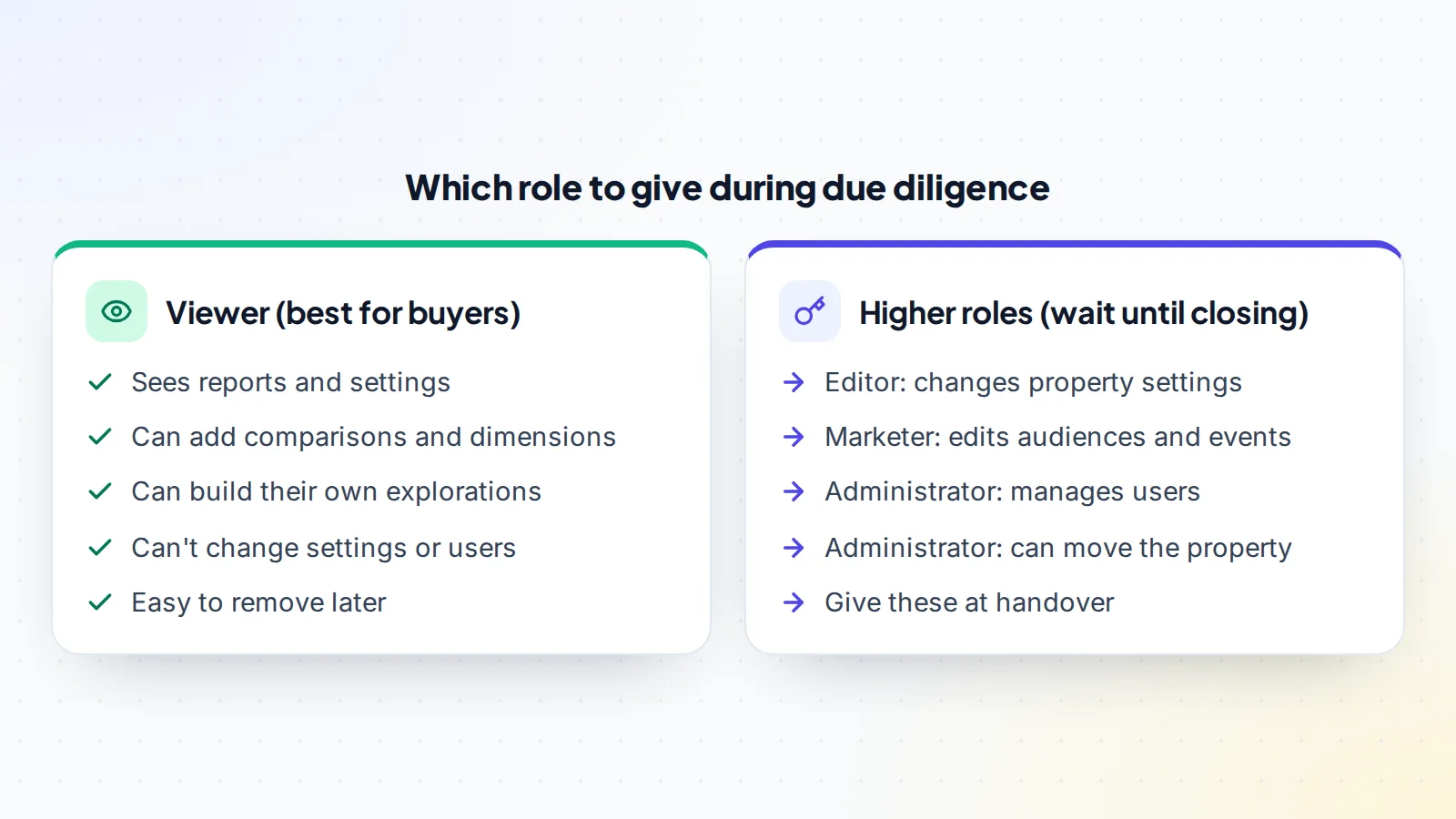
- Administrator: full control, including managing users and their roles.
- Editor: full control of settings at the property level, but can’t manage users.
- Marketer: can create and edit audiences, events and key events, and edit attribution settings.
- Analyst: can share explorations with other users, and includes the Viewer’s permissions.
- Viewer: can see settings and data, change what appears in reports, and create their own explorations.
For a buyer during due diligence, Viewer is almost always the right choice. It shows them everything they need to check, while leaving all control with you.
Account level or property level?
A Google Analytics account can hold several properties, for example one for each of your websites. If you add a user at the account level, they may see every property in it. If you add them at the property level, they see only that property. When you give Google Analytics access to a buyer, choose the property for the site you’re selling, so your other sites and their data stay private.
If the website you’re selling shares a property with other sites, consider whether the buyer can understand the data without seeing the rest. If not, you may need to show it on a screen-share instead, and plan to separate the tracking before closing.
How to give Google Analytics access, step by step
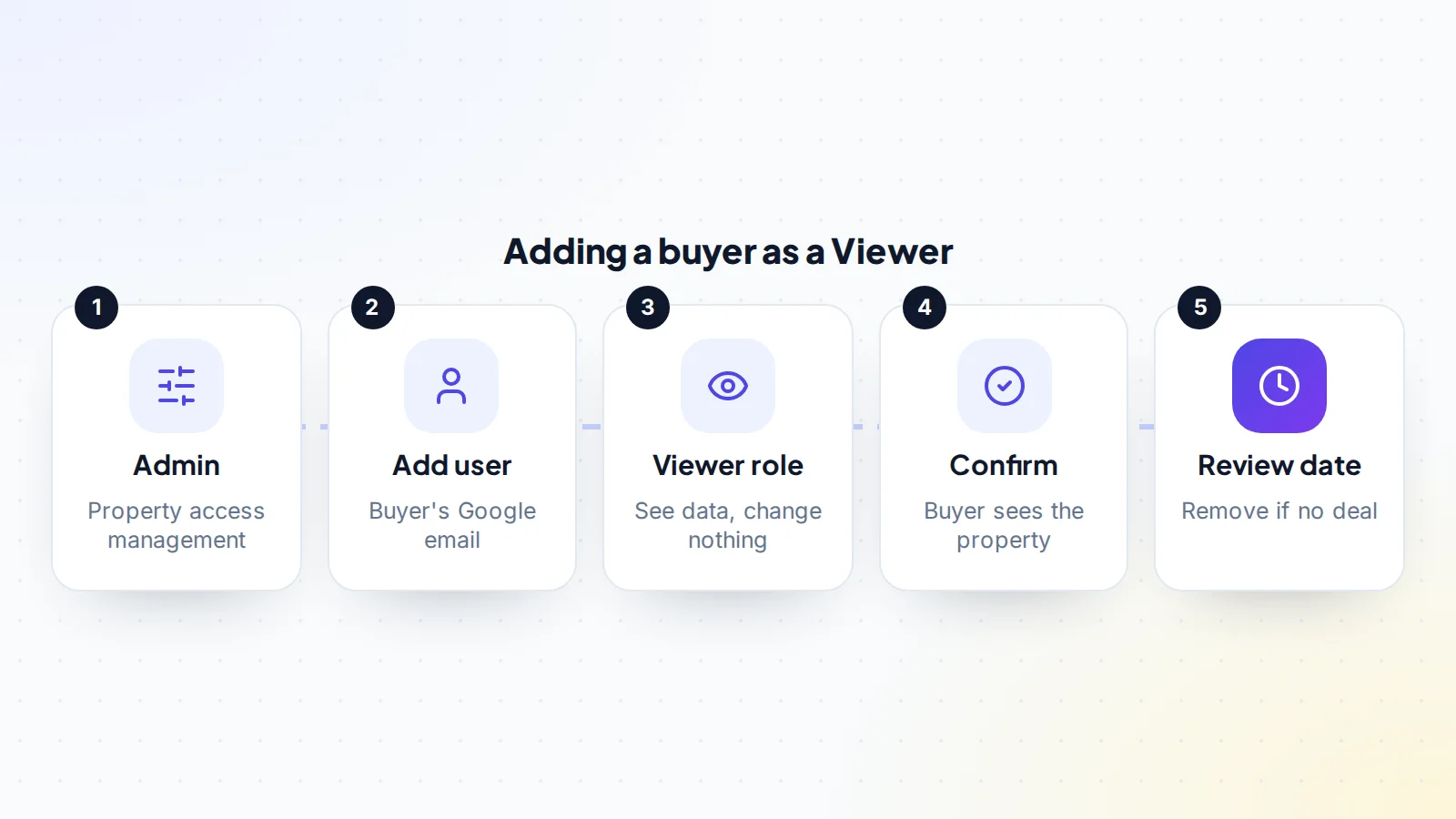
- Sign in to Google Analytics with an account that has the Administrator role.
- Open Admin, choose the property for the site you’re selling, and go to property access management.
- Add a new user and enter the buyer’s Google account email address.
- Choose the Viewer role. Leave the option to notify the user switched on, so they get an email.
- Save, then ask the buyer to confirm they can see the property.
Menu names change from time to time, so if you can’t find an option, Google’s help page on adding users has the current steps. Make a note of the date you gave access, and of who you gave it to.
Data restrictions
Google Analytics lets administrators apply data restrictions when they add a user, such as hiding cost metrics or revenue metrics. These can be useful when you want a user to see traffic but not, for example, your ad spend. For a buyer, think carefully before hiding revenue: they’ll need to verify it somewhere, so if you restrict it in Analytics, be ready to show it another way, such as through payout reports and bank deposits. Our guide to verifying website revenue explains what buyers check.
Share Search Console too
Google Search Console shows how the site appears in Google Search: queries, clicks, impressions, pages, and any manual actions or security issues. Buyers value it highly, because it shows search performance from Google’s side. Search Console has owners, full users and restricted users. A restricted user can view most data, which is the closest equivalent to Viewer.
Owners can add users in the property’s settings, under users and permissions. Add the buyer as a restricted user, and remove them later in the same place. Buyers who look at search data will also ask about past updates; our guide to Google algorithm update risk covers why.
What else to share, and how
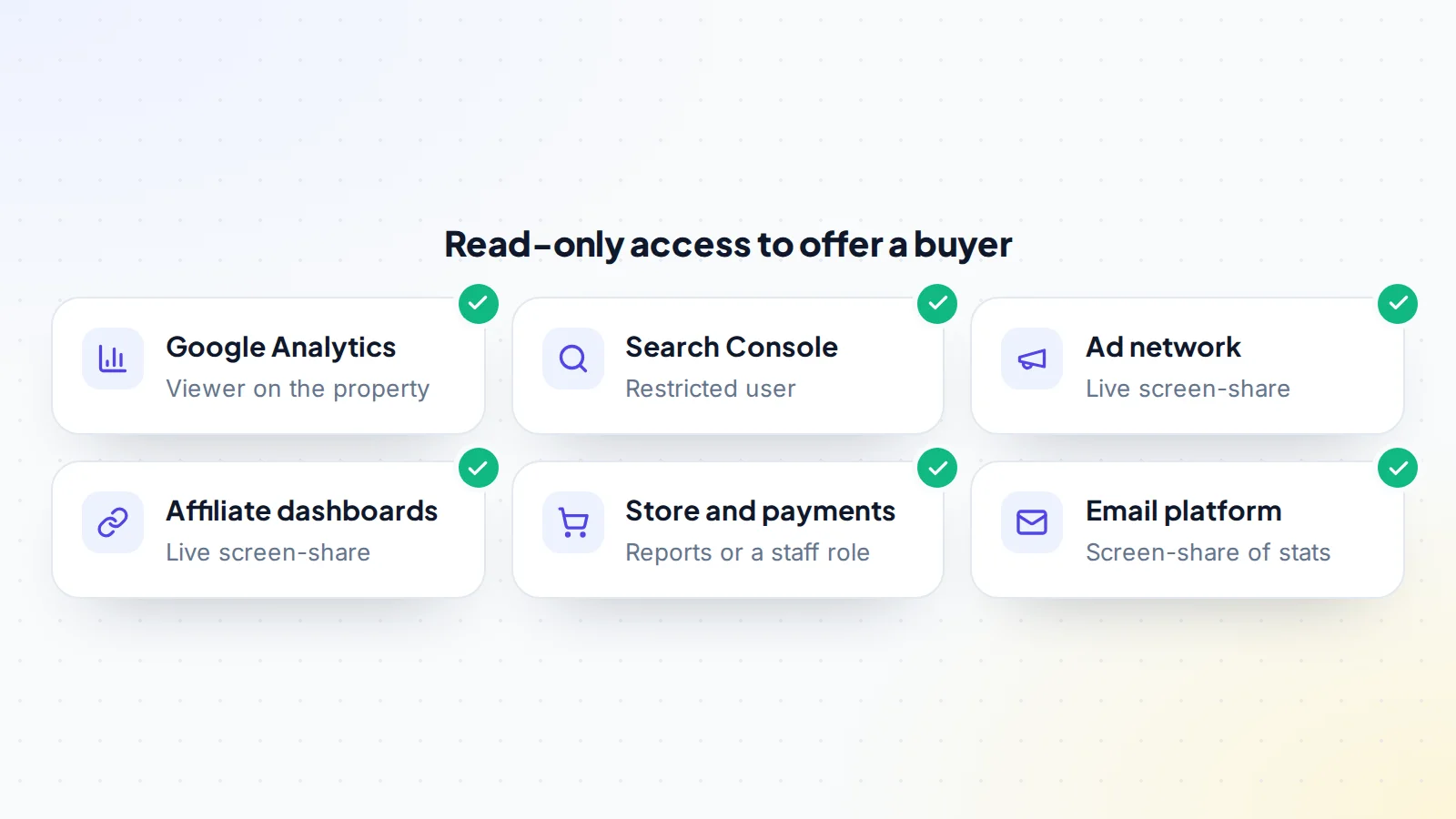
Analytics and Search Console show traffic. Buyers also need to see income and costs. Many income platforms, such as ad networks and affiliate programmes, don’t offer a simple view-only role, so a live screen-share is often the best option: you open each dashboard while the buyer watches and asks questions. Some stores and payment platforms do have limited staff roles; use those if they fit, with the narrowest permissions available.
Whatever the platform, never send your password. Shared passwords give full control, can trigger security alerts, and may break a platform’s terms. Where a platform has user roles, use them. Where it doesn’t, screen-share.
When to give access, and to whom
Share headline numbers publicly in your listing, but give direct access only to serious buyers. Before you do, ask about their experience, budget and plans, and check their profile. Many sellers ask for a short non-disclosure agreement before sharing detailed data. On digiflippers.com, members can verify their identity and profiles show their history, which helps you decide who to trust.
Give access close to when the buyer will use it, rather than weeks before. That keeps the list of people with access short and makes it easier to tidy up later.
What buyers look at once they’re in
Knowing what a buyer will look at helps you prepare answers before they ask. Most start with the long view: users and sessions month by month for the last two or three years, to see the trend and any sudden drops. Then they look at where visitors come from, such as organic search, social, referrals, email or paid ads, and whether one source dominates. They check the top landing pages to see how concentrated traffic is, and the countries visitors come from, because that affects ad and affiliate income.
Many buyers also compare Analytics with Search Console and with income. If traffic and revenue move together, that’s reassuring. If they don’t, expect questions. Prepare short notes on anything unusual, such as a tracking change, a migration or a seasonal pattern, so you can explain it straight away.
If you use another analytics tool
Not every site uses Google Analytics. If yours runs on another analytics tool, check whether it offers read-only users or shareable dashboards, and use those in the same way. If it doesn’t, show it on a screen-share. Whatever the tool, the principle is the same: let the buyer see live data from the source, with a role that can’t change anything.
Keeping your accounts secure
A few habits keep your data safe while buyers look around:
- Keep two-factor authentication on for your own Google account.
- Check the user list regularly and remove anyone you no longer need.
- Don’t give Administrator or Editor before the deal closes.
- Be wary of anyone who asks for higher roles “just to check something”.
- Watch for unexpected emails asking you to sign in; go to Google Analytics directly instead.
Removing access when a deal doesn’t go ahead
If a buyer decides not to proceed, remove their access straight away. In Google Analytics, open property access management, select the user, and remove them. Do the same in Search Console under users and permissions. Removing access is routine and nothing personal; most buyers expect it. A short message saying you’ve tidied up access keeps things friendly in case they come back later.
At closing: moving the property
When the sale completes, the buyer needs full ownership of the analytics history. There are two common ways to do this:
- Move the property: Google Analytics lets you move a property to another account. Google says the tag ID, settings, data streams, reporting data and property-level integrations move with it. To do this, a user needs the Administrator role on both the source and destination accounts. Some organisation settings can block a move, so check Google’s help page first.
- Give the buyer Administrator: add the buyer as an Administrator on the property, then remove yourself once they confirm everything is in place.
For Search Console, the buyer verifies ownership themselves, for example through DNS once the domain is theirs, and you then remove yourself. Write the analytics handover into your transfer plan, so it isn’t forgotten among the bigger items.
A worked example
The details below are made up to show the method.
Priya is selling a gardening blog with about 60,000 monthly visits. The listing includes a traffic summary, and three buyers ask for access. Priya speaks to each, and two seem serious: both have bought sites before and have clear plans.
Priya adds both as Viewers on the blog’s property only, not the account, which also holds another site. Each also gets restricted access in Search Console. The ad network and affiliate dashboards are shown on separate screen-shares. One buyer drops out after a week, and Priya removes their access the same day.
The other buyer makes an offer, and they agree terms. At closing, the buyer creates a Google Analytics account, gets the roles needed, and the property is moved across with its history. The buyer verifies the site in Search Console through DNS, and Priya then removes the old ownership and access, leaving the buyer in full control.
Common mistakes
- Sharing your Google password instead of adding a user.
- Adding the buyer at the account level and exposing other sites.
- Giving Administrator or Editor during due diligence.
- Forgetting to remove access after a deal falls through.
- Hiding revenue without offering another way to verify it.
- Leaving the analytics handover out of the transfer plan.
Give Google Analytics access: the checklist
- Buyer screened and, if needed, a non-disclosure agreement signed.
- Access given at the property level only.
- Viewer role chosen; no higher roles before closing.
- Search Console access given as a restricted user.
- Income dashboards shown by screen-share or limited roles.
- Date and name of each access recorded.
- Access removed promptly if the deal stops.
- Property move or Administrator handover planned for closing.
- Your own access removed once the buyer confirms.
When you’re ready to sell, list your website on digiflippers.com with 0% success fee up to $10,000, then 5% (max $5,000). The free valuation tool gives a quick starting range before you list.
Ready to sell?
List it on digiflippers.com with verified numbers, answer buyers in one place and agree every step in a free Deal Room. 0% success fee up to $10,000, then 5% (max $5,000).
Frequently asked questions
What role should I give a buyer in Google Analytics?
Viewer. It lets them see data and settings and build their own reports, but not change anything or manage users.
Can a buyer see my other websites?
Not if you add them at the property level for the site you’re selling. Account-level access may show every property in the account.
Is it safe to give Google Analytics access?
Yes, with the Viewer role at the property level. Keep two-factor authentication on, and remove access when it’s no longer needed.
Should I share Search Console as well?
Yes. Add the buyer as a restricted user. Search Console shows search performance and any manual actions or security issues.
How do I hand over Google Analytics after the sale?
Either move the property to the buyer’s account, which keeps its data and settings, or make the buyer an Administrator and then remove yourself.
How do I remove a buyer’s access?
In property access management, select the user and remove them. In Search Console, remove them under users and permissions.
What about ad and affiliate dashboards?
Many don’t offer view-only roles, so show them on a live screen-share rather than sharing passwords.