Transferring Business Email and Google Workspace
A step-by-step guide to handing over Google Workspace when a business changes hands: super admin and organization ownership, billing and payment methods, users and mailboxes, Drive files, the domain, and a clean finish.

Many online businesses run on Google Workspace: the support inbox, the sales email, shared documents, calendars and the sign-in for other tools. When the business is sold, all of that needs to move to the buyer without losing email, files or access. The good news is that Google Workspace has the tools to do it, as long as the steps happen in the right order. This guide explains how to transfer Google Workspace in a sale: the super admin role, billing, users and mailboxes, Drive files, the domain and removing the seller cleanly.
Workspace is one part of a wider handover; see our guide to transferring an online business. For other tools, read about transferring third-party accounts.
Key takeaways
- Google says transferring the super admin role also transfers ownership of the organization.
- The buyer becomes a super admin first; the seller’s role is removed afterwards.
- Switch billing to the buyer’s payment method as part of the handover.
- Transfer Drive files before deleting any user; deleted users’ files are removed later.
- Keep the domain and email settings working throughout, so mail isn’t lost.
Why Workspace matters in a sale
Email is often the most important account in a business. Password resets for other tools arrive there, customers write there, and suppliers send invoices there. Shared Drive files hold processes, contracts and content. If Workspace stays with the seller, the buyer is exposed: the seller could still read customer emails, reset passwords or delete files. A clean Workspace handover is therefore one of the first things to complete after the payment is secured.
Before the handover: make an inventory
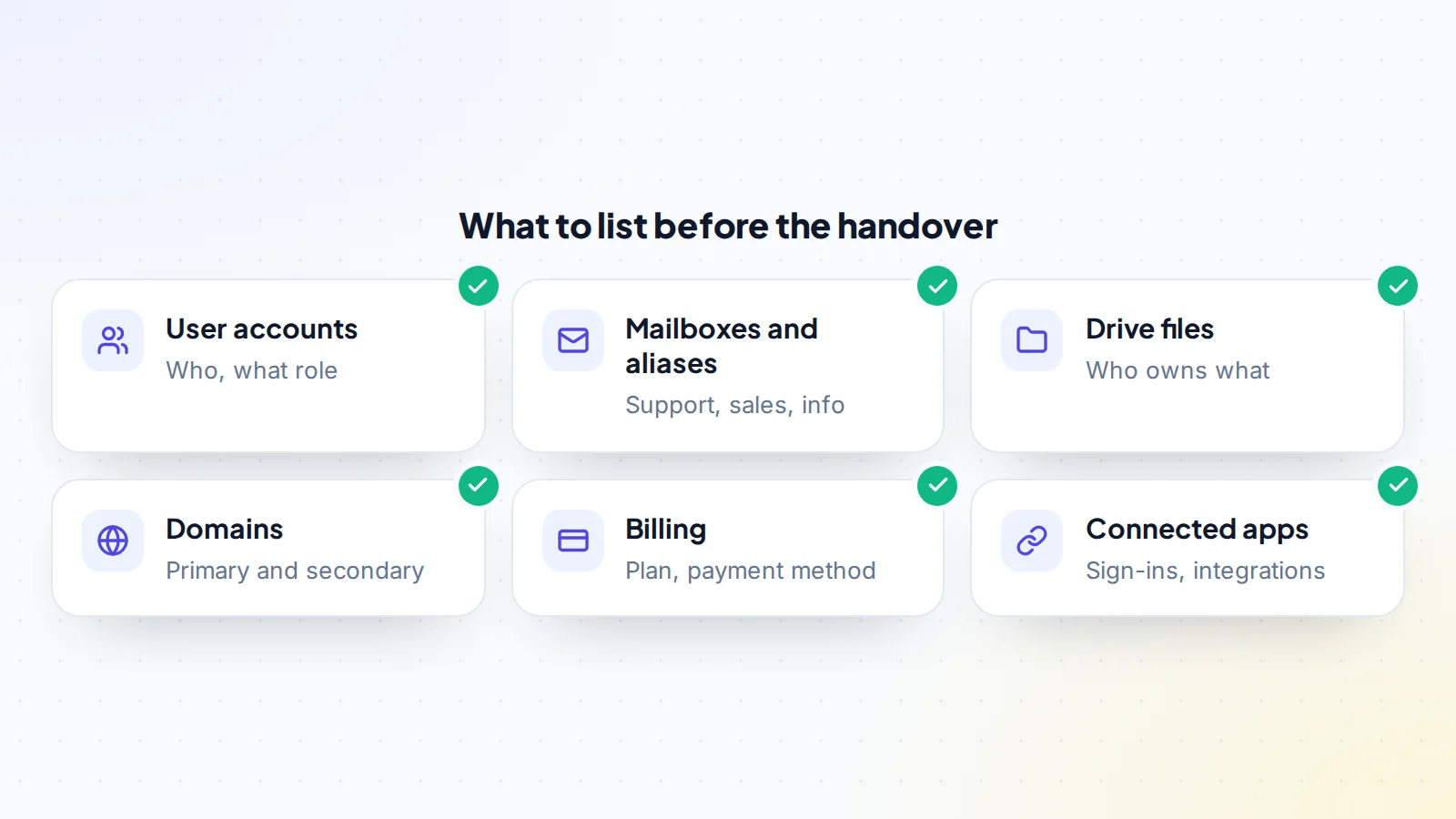
The seller should list everything in the Workspace account before the handover call:
- Every user account, what it’s used for, and its admin role.
- Mailboxes and aliases, such as support@ or sales@, and where they forward.
- Important Drive files and shared drives, and who owns them.
- The primary domain and any secondary domains.
- The current plan, billing account and payment method.
- Apps connected to Workspace, such as sign-in with Google for other tools.
This inventory goes into the transfer plan, so both sides know what’s moving.
Step 1: Make the buyer a super admin
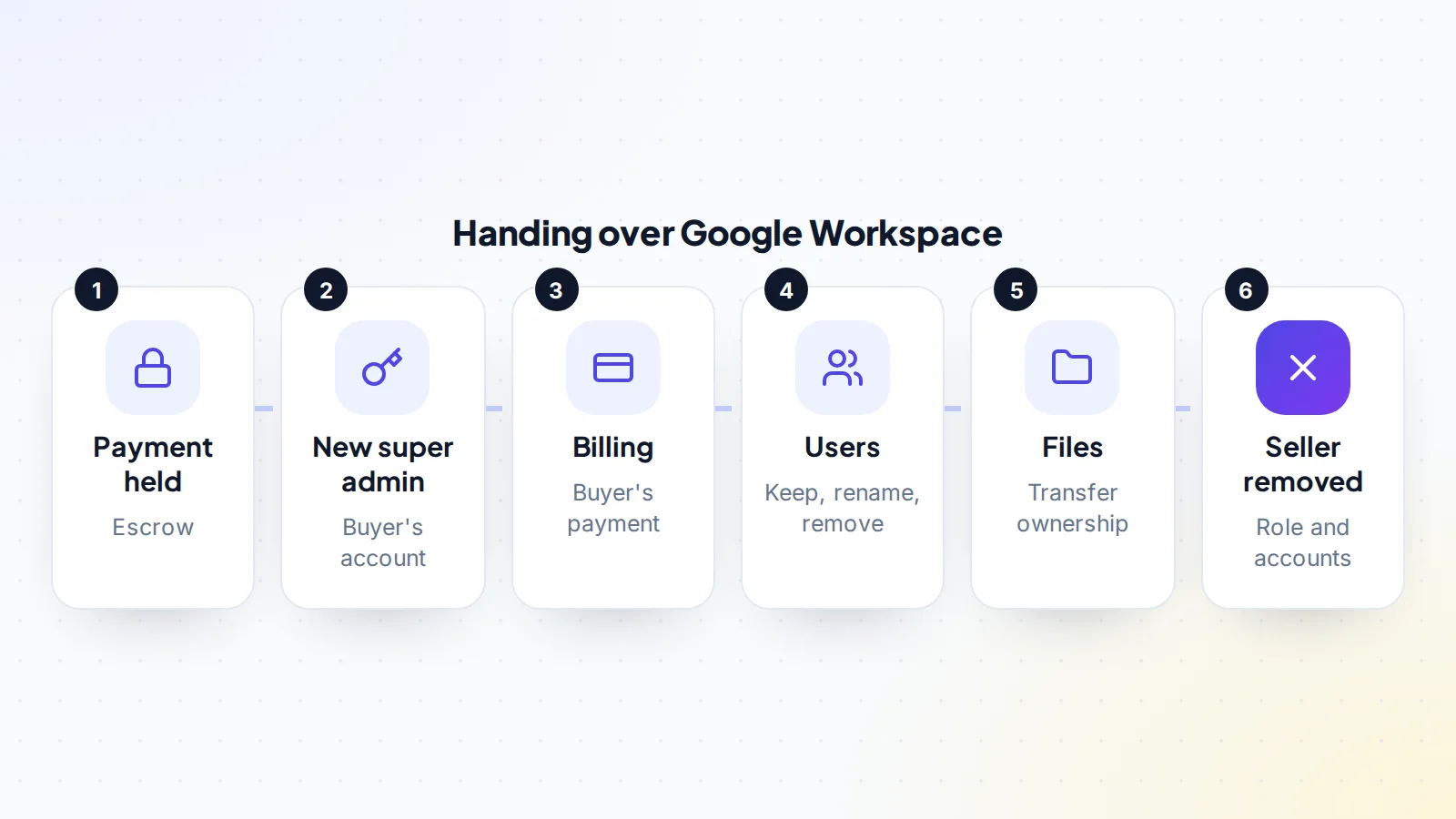
Google Workspace has administrator roles, and the super admin role has full control over the organization. Google’s help explains that if you’re the only super admin, you can transfer that role to another user, and that doing so also transfers ownership of the organization to the new super admin. The process is to assign the super admin role to the new admin, then have the new super admin remove the role from the original admin.
In a sale, that usually means the seller creates a user account for the buyer in the organization, or uses an existing one the buyer will keep, and assigns the super admin role. The buyer signs in, sets a new password and two-step verification, and confirms they can see the admin console.
Step 2: Switch billing
The Workspace subscription is paid from a billing account with a payment method. Once the buyer is super admin, update billing so the buyer’s payment method pays future invoices, and remove the seller’s card or bank account. Google’s billing help covers how payment methods are managed and who can set up billing. Check the current plan, the number of licences and the renewal date, and agree who pays for the current billing period.
Step 3: Decide what happens to each user
Go through the user list together. Typical decisions:
- Keep: shared role accounts, such as support@, that the buyer will continue using. Reset their passwords and recovery details.
- Rename: accounts tied to the seller’s name that the buyer wants to keep for continuity, such as a founder’s address that customers know.
- Remove: the seller’s personal account and any former staff accounts, after their files and mail are dealt with.
For accounts that customers know, consider keeping them active for a while, with forwarding or an auto-reply, so messages still reach the business.
Step 4: Transfer Drive files
Files in Google Drive belong to the user who created them, unless they’re in a shared drive. Google’s help explains that an admin can transfer ownership of a user’s Drive files to another user in the same organization, for example before removing that user. Super admins can also transfer Drive files, primary calendar data and some other data during the deletion process. If files aren’t transferred, Google says they’re deleted 20 days after the user is deleted, though there’s a short window to restore the user if you act quickly.
Transfer files from the seller’s account to the buyer’s account before removing the seller. Check shared drives too, and make sure the buyer’s accounts are managers of each one.
Step 5: Keep email flowing
Email depends on the domain’s DNS records pointing to Google. During the handover, don’t change these records unless you have to. If the domain itself is part of the sale, transfer it carefully and keep the existing MX, SPF, DKIM and DMARC records exactly as they are, so mail keeps arriving and outgoing mail stays authenticated. Our guide to your first steps after buying an online business covers checking that email works after the move.
Step 6: Connected apps and sign-ins
Many tools use “Sign in with Google” through Workspace accounts. When a user is removed or renamed, those sign-ins may break. Before removing the seller, list the tools they sign in to with their Workspace account, and move each one to a buyer-controlled account or a shared role account. Review apps connected to Workspace in the admin console, and remove any that aren’t needed.
Step 7: Remove the seller
Once files, mail and tools are in the buyer’s hands, the buyer removes the super admin role from the seller’s account, then removes or suspends the account itself. Sign out the seller’s sessions, check that no other admins remain that shouldn’t, and review the security settings. This is the step that completes the transfer; until it’s done, the seller still has access, however good everyone’s intentions are.
Moving the whole organization or just the data
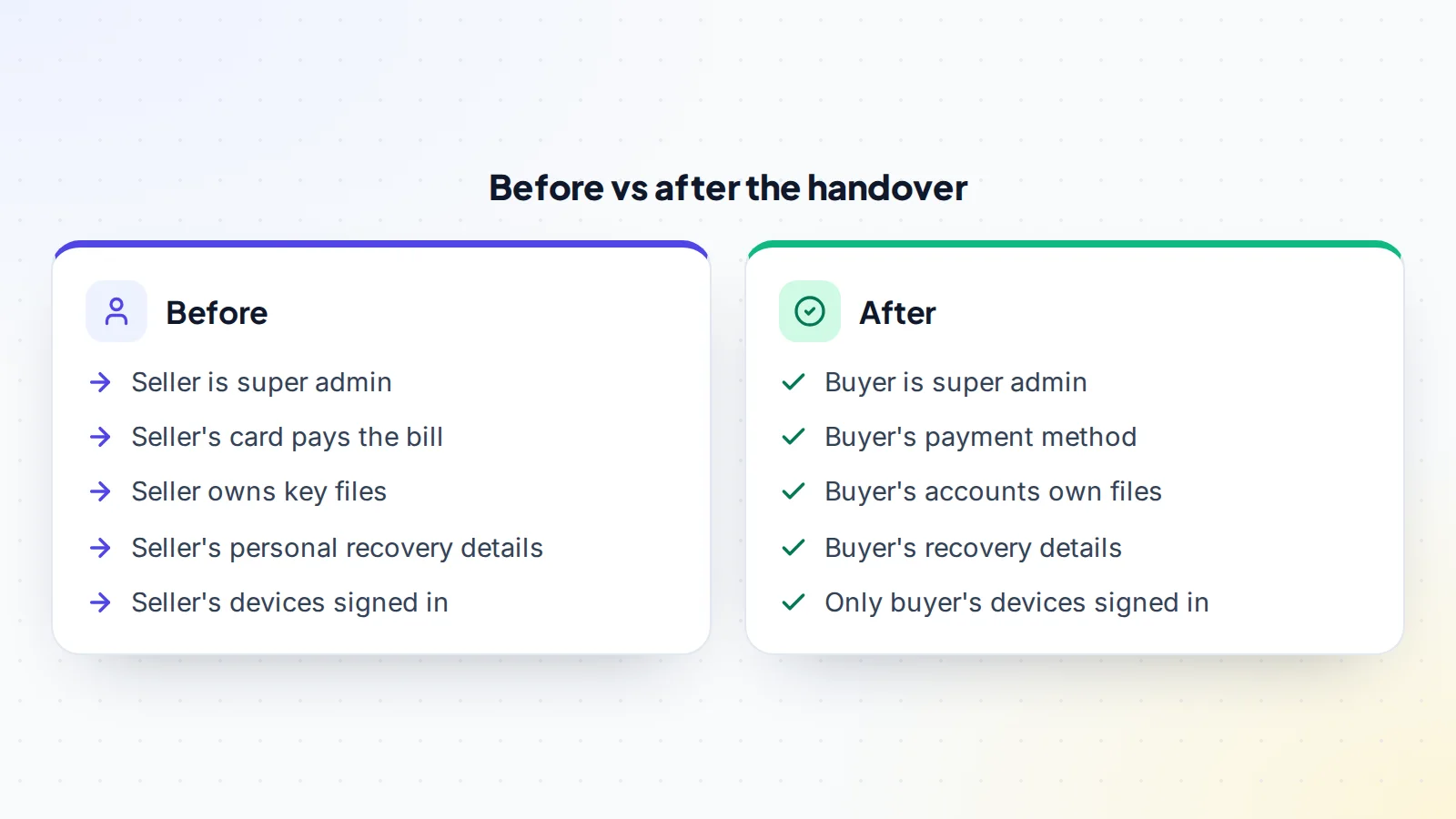
There are two broad approaches. The most common is to hand over the whole Workspace organization: the buyer becomes super admin, takes over billing and keeps the existing accounts, mail and files. That keeps everything continuous and avoids moving mail. The alternative is for the buyer to bring the business into their own existing Workspace organization, for example if the buyer already runs several businesses. That involves adding the domain to the buyer’s organization and migrating mail and files, which takes more planning and usually needs the seller’s organization to release the domain first. Decide which approach you’ll use before agreeing the timeline, because the second takes considerably longer.
Security review after the handover
Once the seller is removed, the buyer should review the organization’s security settings: two-step verification enforcement, password rules, recovery options for admin accounts, and which apps have access to data. Check mail forwarding rules on every mailbox, because a forwarding rule set up long ago can quietly send copies of messages elsewhere. Review shared drives and the sharing settings on important files, removing any external access that’s no longer needed. Make sure there are at least two super admin accounts controlled by the buyer, so access isn’t lost if one account has a problem.
Timing with the payment
Workspace usually moves after the buyer’s payment is held, as part of the main handover. Agree the order in the transfer plan: often domain and hosting first, then Workspace, then other tools. On digiflippers.com, deal terms and messages stay together; read how it works. Keep the escrow payment held until the buyer confirms the Workspace handover is complete. If the seller is concerned about chargebacks on other payments in the business, our guide to chargeback risk when selling online explains how escrow helps.
Customer data and privacy
Workspace mailboxes contain customer messages and personal data. Treat the handover with care: move accounts within Workspace rather than exporting mail to personal accounts, and remove access for anyone who no longer needs it. If the business operates under data protection laws, check that the transfer fits with what customers were told and any obligations that apply.
Telling customers and suppliers
If email addresses stay the same, customers may not notice any change, which is often ideal. If a founder’s address is being retired, set an auto-reply that points to a shared address, and update signatures, website contact pages and invoices. Suppliers and partners who receive emails from the business should be told who their new contact is, ideally in a short introduction from the seller. Small details like these keep the business running smoothly while the new owner settles in.
If the business uses another email provider
Some businesses use other email and document platforms. The principles are the same: move the top admin role to the buyer, switch billing, decide what happens to each user, transfer files, keep the domain’s mail records working and remove the seller last. Check the provider’s own help pages for the exact steps.
For sellers: making it smooth
- Prepare the inventory before the handover call.
- Tidy up old users and unused aliases in advance.
- Move important files into shared drives where possible.
- Note every tool you sign in to with your Workspace account.
- Be available for questions for a short period afterwards.
When you’re ready to sell, list your business on digiflippers.com with 0% success fee up to $10,000, then 5% (max $5,000).
Common mistakes
- Deleting the seller’s account before transferring their files.
- Leaving the seller’s card on the billing account.
- Changing DNS records during the handover and losing mail.
- Forgetting tools that use the seller’s Workspace sign-in.
- Leaving the seller as a super admin “just in case”.
A worked example
The details below are made up to show the method.
Sam is buying an online store that uses Google Workspace for three accounts: the seller’s own address, support@ and orders@. The seller prepares an inventory listing the users, a shared drive with product files, the billing plan and four tools that use the seller’s Workspace sign-in.
With the payment held in escrow, the seller makes Sam’s new account a super admin. Sam signs in, sets two-step verification and switches billing to Sam’s card. The seller transfers their Drive files to Sam’s account, moves the four tools to the support@ account, and Sam resets passwords for support@ and orders@. Sam then removes the seller’s super admin role, suspends the seller’s account with an auto-reply pointing to support@, and checks that mail still arrives. The escrow funds are released after the inspection period.
Transfer Google Workspace: the checklist
- Inventory of users, aliases, files, domains, billing and apps.
- Payment held before the handover.
- Buyer made super admin and signed in with two-step verification.
- Billing switched to the buyer’s payment method.
- Each user kept, renamed or removed as agreed.
- Drive files and shared drives transferred.
- DNS and mail records left working.
- Connected apps and sign-ins moved.
- Seller’s role and account removed last.
Ready to find your next asset?
Browse listings with verified numbers, ask sellers your questions before you offer, and agree every step in a free Deal Room.
Frequently asked questions
How do I transfer Google Workspace to a buyer?
Make the buyer a super admin, switch billing, sort out users and files, then have the buyer remove the seller’s super admin role.
Does transferring super admin transfer ownership?
Google says that if you’re the only super admin and transfer the role, ownership of the organization moves to the new super admin.
What happens to the seller’s files?
Transfer them to the buyer’s account before removing the seller. Google says untransferred files are deleted 20 days after the user is deleted.
Will email stop during the transfer?
Not if the domain’s mail records stay the same. Avoid changing DNS during the handover.
Who pays for Workspace after the sale?
The buyer, once billing is switched to their payment method. Agree who pays for the current period.
What about tools that use the seller’s Google sign-in?
Move them to a buyer-controlled account before removing the seller.
When is the transfer complete?
When the buyer is the only super admin, billing is theirs, files have moved and the seller’s access is removed.