How to Check a Domain’s History Before You Buy
A step-by-step domain history check: what the registration record shows, how to see past websites, and the safety, trademark and reputation checks that protect buyers.

Every domain has a past. Some have been the home of a respected business for twenty years; others have hosted spam, changed hands a dozen times or sat parked with nothing on them. Before you pay for a domain, a domain history check tells you which story you’re buying. It takes less than an hour, most of the tools are free, and it can save you from a name with problems you’d only discover after the sale.
This guide walks through each check in order: the registration record, past websites, safety warnings, trademarks, links and email reputation. If you’re buying a domain someone else owns, read it alongside our guide to buying a domain name that’s taken.
Key takeaways
- Start with the registration record in ICANN Lookup: dates, registrar, status and name servers.
- Use the Wayback Machine to see what the domain was used for over the years.
- Check Google Safe Browsing and trademark databases before you make an offer.
- Look at who links to the domain and whether it’s on email blocklists.
- A history isn’t a problem in itself; it should fit what you plan to do with the name.
Why domain history matters
A domain carries its past with it. Search engines may remember how it was used. Email providers may remember whether it sent spam. People may remember it as another company’s brand. And a trademark owner may have a claim to it. None of this shows on a marketplace listing, which usually gives the name, the price and perhaps a short description.
Google’s spam policies also describe “expired domain abuse”: buying an expired domain mainly to use its reputation for low-value content. If your plan for a domain depends on its past reputation, read those policies first; if you simply want a good name for a new project, the history check is about avoiding surprises.
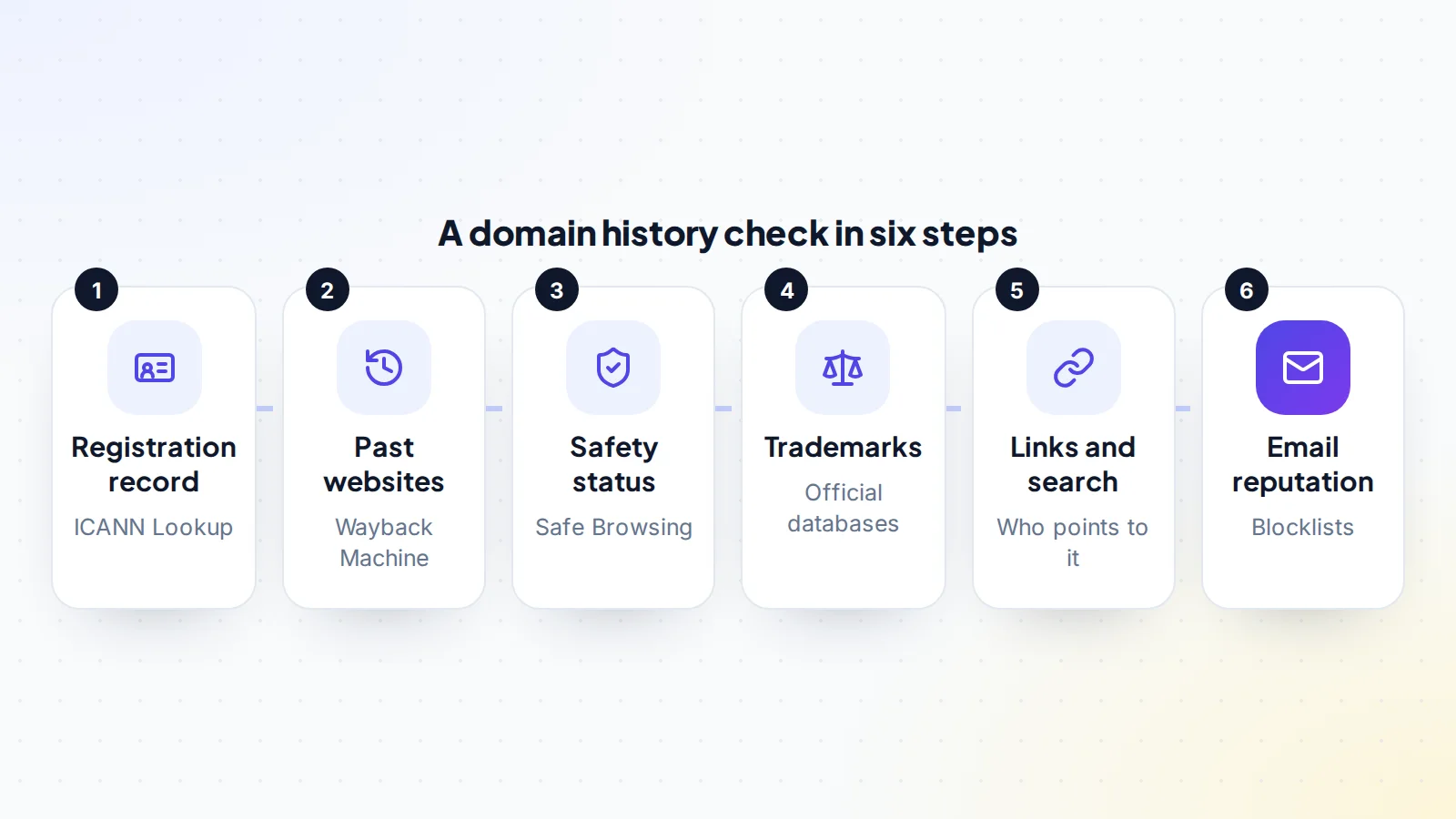
Step 1: Read the registration record
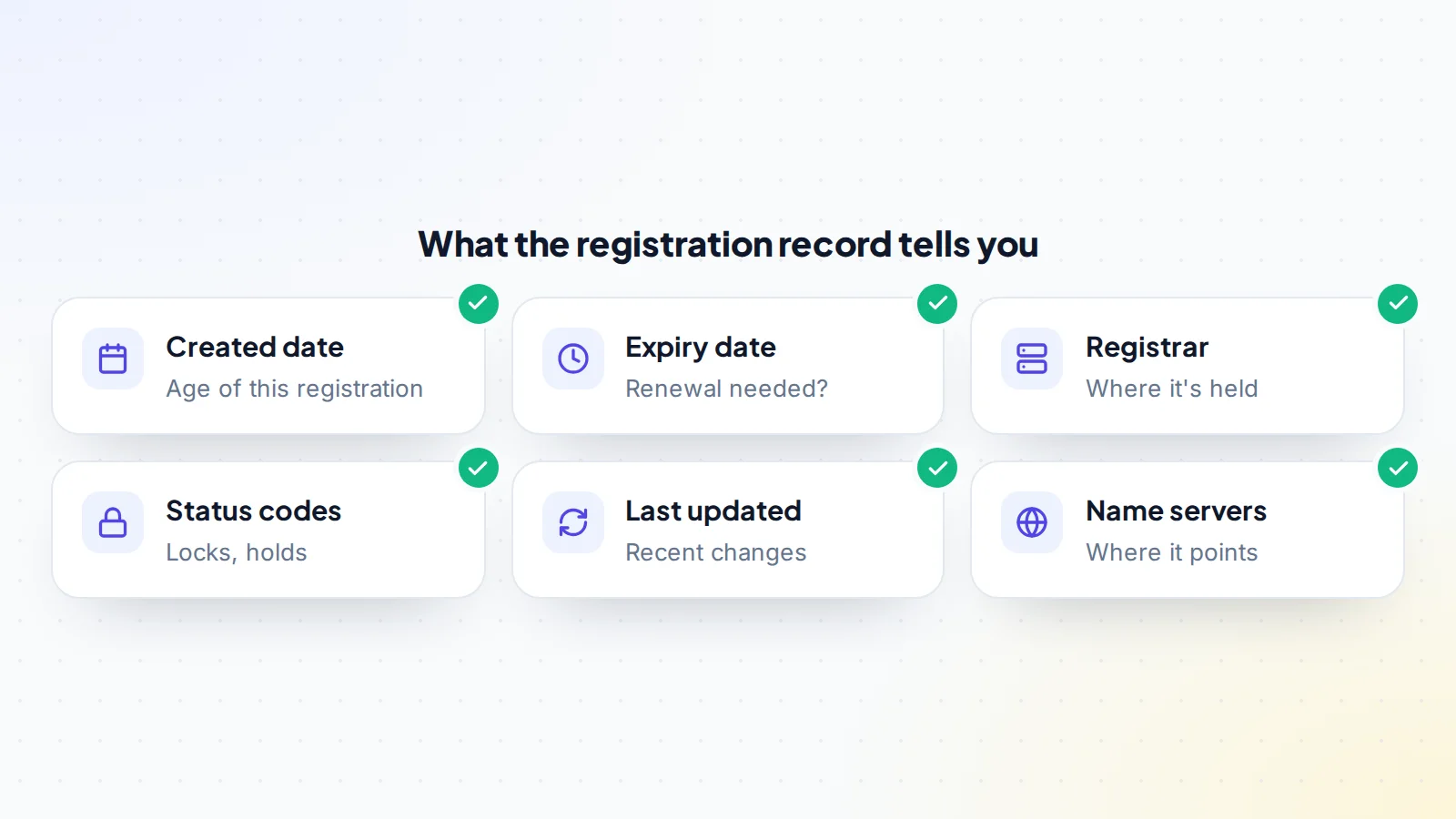
ICANN Lookup shows registration data for most domains, using the RDAP protocol that replaced the older WHOIS system. Enter the domain and note:
- Created date: when the current registration began.
- Expiry date: when it needs renewing.
- Registrar: the company where it’s held.
- Status codes: such as transfer locks or holds that would affect a sale.
- Last updated: a very recent change may deserve a question.
- Name servers: where the domain currently points.
Owner details are often hidden for privacy, which is normal. If the created date is recent but the seller says the domain is old, it may have expired and been registered again; the Wayback Machine will show you.
Step 2: See past websites in the Wayback Machine
The Internet Archive’s Wayback Machine stores snapshots of websites over time. Enter the domain to see a calendar of captures, then open a few from different years. Look for:
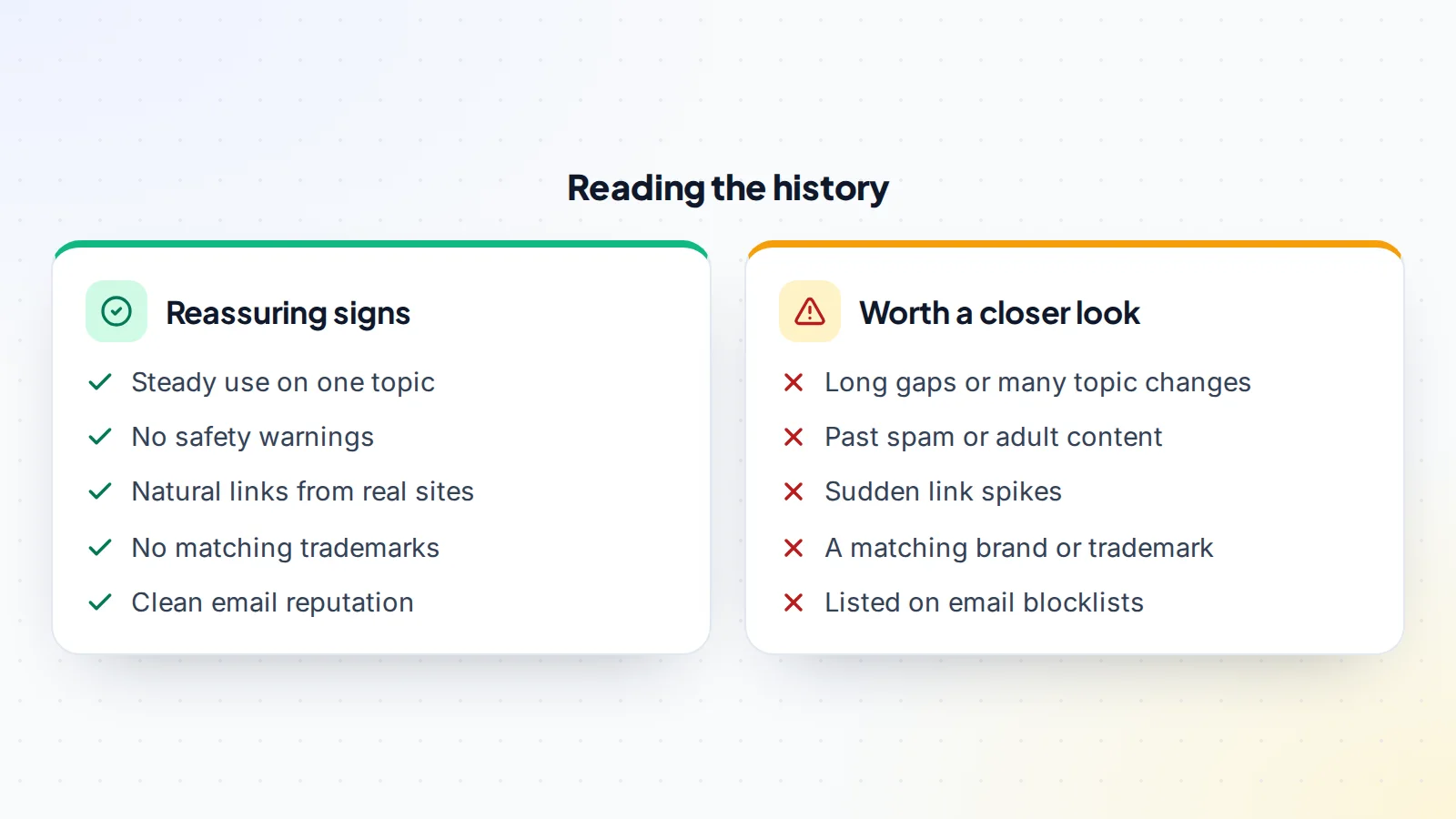
- What the site was about, and whether the topic changed.
- Long gaps, parked pages or pages full of unrelated ads.
- Content you wouldn’t want associated with your brand.
- Signs that it was a real business, such as product pages or contact details.
A domain that was a genuine site on one topic for years usually has a cleaner history than one that has changed topic repeatedly or hosted thin pages full of links. Save links to the snapshots you looked at, so you can refer back to them during negotiation or share them with an adviser.
Step 3: Check safety warnings
Google’s Safe Browsing site status, in its Transparency Report, shows whether Google currently considers a site dangerous to visit, for example because of malware or phishing. Search for the domain. A current warning is a serious issue; past problems that have been fixed are less so, but ask the seller about them.
If the seller has a Search Console account for the domain, ask them to share the Security issues report on a screen-share. It shows whether Google has detected that the site was hacked or is harmful.
Step 4: Search trademarks
A domain that matches someone else’s brand can lead to a dispute, even if you bought it in good faith. Search the name in the trademark databases for the countries you’ll operate in, such as the USPTO’s search in the US. Also search the name in quotes on the web to see whether a business uses it. If there’s a close match in your field, take advice before buying. ICANN’s Uniform Domain-Name Dispute-Resolution Policy, or UDRP, is the process trademark owners can use to claim domains; our guide to domain trademarks and UDRP explains it.
Step 5: Look at links and search presence
Links from other websites are part of a domain’s history. Backlink tools show which sites link to the domain and with what words. Natural links from real sites in the same topic are a good sign. Large numbers of links from unrelated, low-quality or foreign-language sites, or a sudden spike in links, suggest past link schemes.
Search Google for site: followed by the domain to see whether any pages are indexed. If the domain has been used for years but nothing shows, ask why.
Step 6: Check email reputation
If you plan to send email from the domain, check whether it appears on major email blocklists, which several free lookup tools search at once. A domain that sent spam in the past may need time and careful sending to build a good reputation. Our guide to email deliverability checks explains what to look for.
Common histories and what they mean
- Never used: registered and parked, with no past website. Usually a clean slate; the name itself sets the value.
- One long-term site on one topic: often the best history, especially if your plans fit the same topic.
- Former business brand: people may still search for the old business, and old customers may still email it. Check trademarks carefully.
- Many owners and topics: frequent changes can mean the domain has been bought and sold for its links. Look closely at backlinks and indexed pages.
- Past spam or harmful content: the hardest to fix. Consider whether the name is worth the time it may take to rebuild trust.
Your domain history check should end with one clear sentence: what this domain was, and whether that fits what you want it to be.
Country-code domains
ICANN’s policies cover generic domains such as .com, .net and .org. Country-code domains, such as .uk, .de or .io, are run by their own registries, each with its own rules and lookup service. For these, use the registry’s own lookup alongside the general tools, and read its rules on transfers and on who can hold a domain, as some country-code domains have residency or presence requirements.
If the domain comes with a live website
When the domain is sold with a working site, the history check widens into due diligence on the business. Ask for read access to analytics and Search Console, and compare traffic over time with the Wayback Machine snapshots: big changes in content should line up with changes in traffic. Check that the site’s content is original, that it doesn’t rely on links from networks the seller controls, and that its income sources will continue. Our guide to verifying website traffic covers the next steps.
Signs in the record to ask about
- A very recent “updated” date just before listing, which may mean a recent change of owner or settings.
- Transfer locks or holds that would stop the domain moving to you on time.
- An expiry date within weeks, which the seller should renew before the sale or the price should reflect.
- Name servers pointing to an unknown service, which may show where the domain is currently used.
None of these is a problem in itself; each is a question with a simple answer from an honest seller.
How history affects price
Domain prices depend on the name itself: length, words, extension and demand. History adjusts that price. A clean history with a genuine past website can support the price, especially for a brandable name. Past spam, a matching trademark or a blocklist listing are reasons to negotiate or walk away, because they cost time or money to deal with, or may never be fully fixed. Our guide to expired domains explains how history matters even more for names that have dropped.
Questions to ask the seller
- How long have you owned the domain, and how did you use it?
- Has it ever had a website, email or redirects pointing elsewhere?
- Have you received any trademark complaints or legal notices about it?
- Can you share Search Console data, including security issues?
- Is it locked, or under any hold that would delay a transfer?
Compare the answers with what your checks show. Honest sellers’ stories usually match the record. If something doesn’t line up, such as a claimed age that the archive doesn’t support, ask again politely and give the seller a chance to explain before you decide. Keep the conversation on the marketplace, so the answers are part of the deal’s record.
A worked example
The details below are made up to show the method.
Jade wants to buy a short .com for a new skincare brand. ICANN Lookup shows the current registration was created three years ago, but the Wayback Machine shows a website on the domain going back twelve years, first as a small beauty blog, then parked for two years before the current owner bought it. Safe Browsing shows no warnings, and a trademark search finds no matching marks in the skincare field. A backlink check shows a modest number of links from beauty blogs, with no spikes.
The seller explains that the domain expired once and they registered it when it dropped, which matches the record. Jade agrees a price and uses domain escrow for the payment.
After you buy
Once the domain is yours, finish the job. Turn on the registrar’s transfer lock and two-step sign-in, set the domain to renew automatically and update the contact details. If the domain had a past life, set up a simple holding page or your new site promptly, and if it had links to old pages that matter, consider redirecting them to relevant new pages. If it will send email, set up SPF, DKIM and DMARC before you start, and build up sending gradually. Keep a copy of your history checks with the purchase records.
Domain history check: the checklist
- Registration record read: dates, registrar, status, name servers.
- Wayback Machine snapshots reviewed across several years.
- Google Safe Browsing status checked.
- Trademark databases and the web searched for the name.
- Backlinks reviewed for spam patterns.
- Indexed pages checked in search.
- Email blocklists checked if you’ll send email.
- Seller’s answers compared with the record.
- Payment protected with escrow.
Ready to find your next asset?
Browse listings with verified numbers, ask sellers your questions before you offer, and agree every step in a free Deal Room.
Frequently asked questions
How do I check a domain’s history?
Look up the registration record with ICANN Lookup, view past websites in the Wayback Machine, check Google Safe Browsing, search trademarks, review backlinks and check email blocklists.
Can I see past owners of a domain?
Often not directly, because owner details are usually hidden for privacy. The Wayback Machine and the dates in the registration record show how the domain was used and when it changed.
Why does the created date look recent for an old domain?
If a domain expired and was registered again, the created date usually resets. The Wayback Machine shows the earlier history.
Does a bad history mean I shouldn’t buy?
Not always. It depends on the problem and your plans. Current safety warnings, trademark conflicts and blocklist listings are the most serious.
Is a domain history check free?
Most of it is. ICANN Lookup, the Wayback Machine, Safe Browsing and trademark databases are free; some backlink tools are paid.
How should I pay for a domain?
Use escrow so the money is held until the domain is in your account. On digiflippers.com, the ways to pay in a deal are: directly to the seller, through escrow, and the platform never holds the money itself.
How long does a domain history check take?
Usually under an hour for the core checks. A domain sold with a live website needs more time, because the website and its income need checking too.