How to Verify a Website’s Traffic Before You Buy
A step-by-step method to verify a website's traffic: getting read-only access, cross-checking Analytics with Search Console, judging quality and spotting manipulated numbers.

Traffic is often the foundation of a website’s value: it brings the ad income, affiliate commissions, leads and sales. It’s also easy to misrepresent, with edited screenshots, bought visits or a single viral month presented as normal. Before you buy, you need to verify website traffic for yourself, using access the seller can’t fake. This guide shows how to get that access, what to check in Google Analytics and Search Console, and how to spot traffic that isn’t what it seems.
Traffic checks are one part of buying a site; our guide on how to buy a website covers the rest, and our guide to verifying website revenue covers the income side.
Key takeaways
- Ask for read-only access: a Viewer role in Google Analytics and a restricted user in Search Console.
- Cross-check search traffic in Analytics against clicks in Search Console.
- Look at 24 months or more, so seasonality and past changes are visible.
- Judge quality, not just quantity: regions, engagement, pages and income.
- Treat screenshots as a starting point, never as proof.
Step 1: Get read-only access
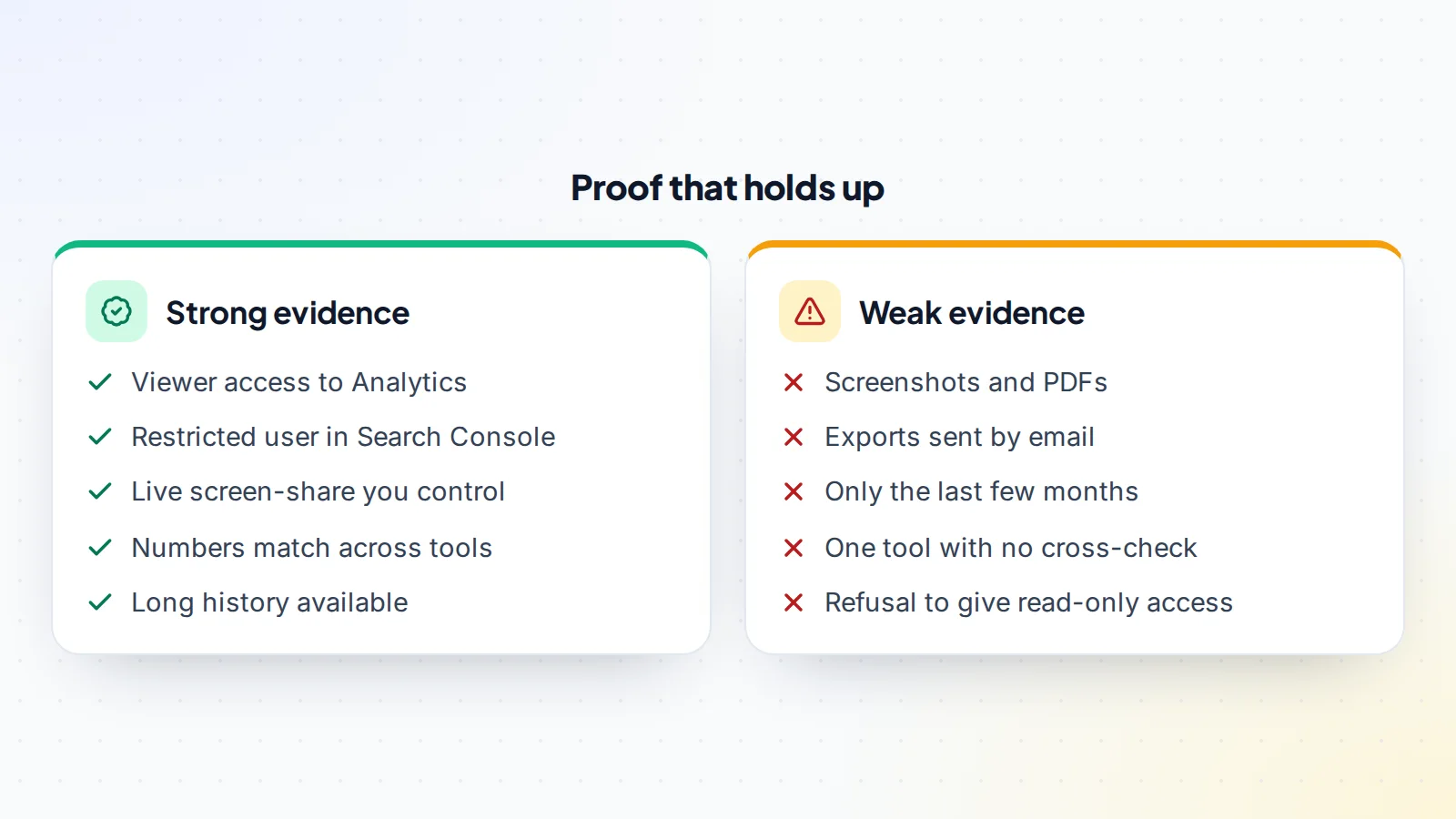
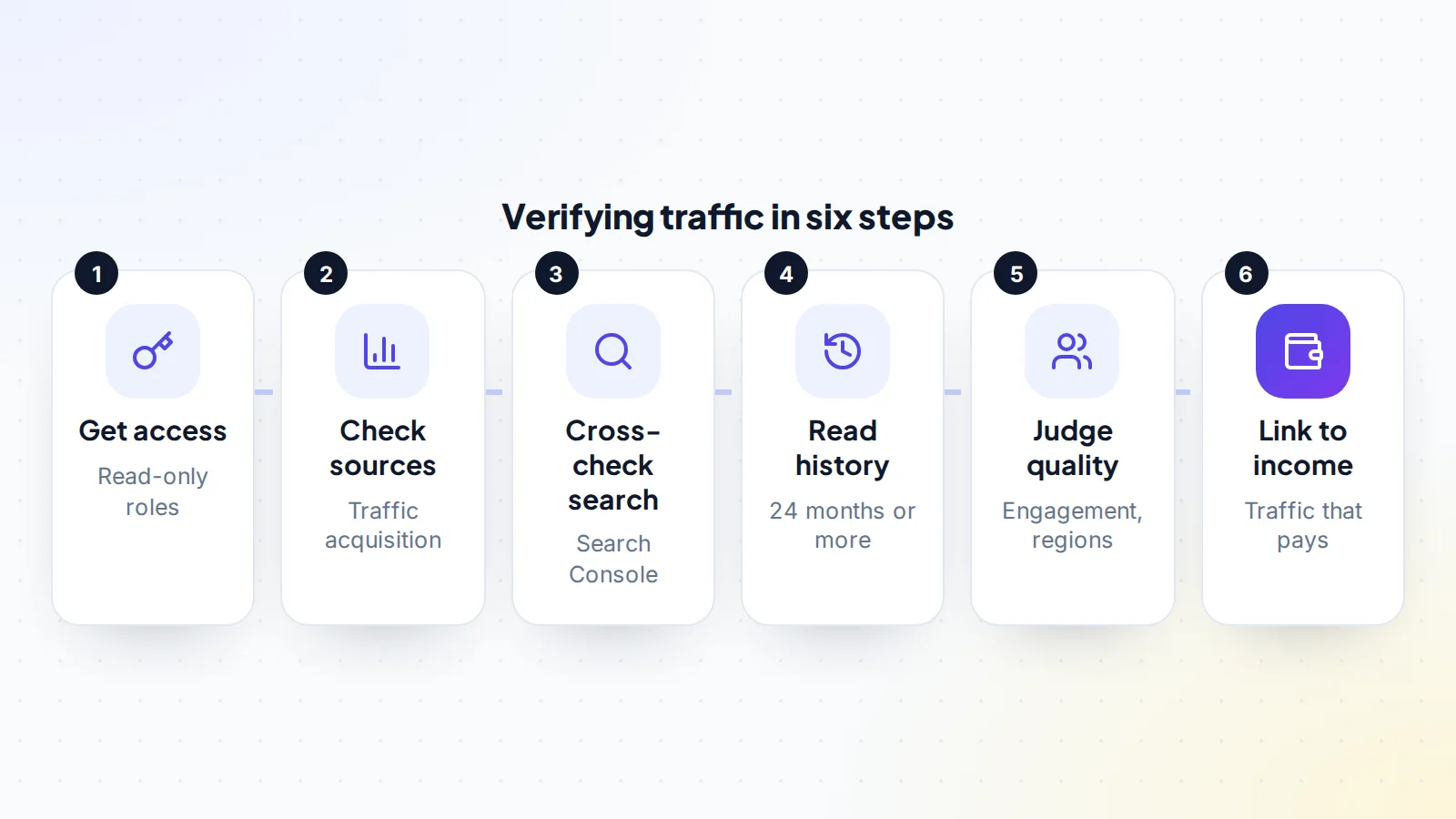
The strongest proof is access the seller can’t edit. Google Analytics lets account administrators add users with specific roles; the Viewer role lets someone see data and settings without changing them. Search Console lets property owners add users as “full” or “restricted”, where restricted users can view most data. Ask the seller to add your email address with these roles for the duration of due diligence.
If a seller prefers not to add you, a live screen-share where you direct what they click, and watch the address bar, is the next best option. Screenshots and exported PDFs are easy to edit and shouldn’t be relied on alone.
Our guide on how to give Google Analytics access walks sellers through the steps, which you can share with them.
Step 2: Check where traffic comes from
In Google Analytics, the Traffic acquisition report shows sessions grouped by channel, such as Organic Search, Direct, Organic Social, Referral and Email. Look at:
- The share of sessions from each channel over the last 12 to 24 months.
- Whether the mix has changed, and why.
- Referral sources: are they real websites in the same topic, or unfamiliar domains?
- Direct traffic: a sudden rise with no explanation can point to bots or misconfigured tracking.
A site that relies heavily on one channel carries more risk; our guide to traffic concentration risk explains how that affects price.
Step 3: Cross-check with Search Console
Search Console’s Performance report shows clicks and impressions from Google Search, broken down by query, page and country. It comes from Google’s side, not the site’s tracking code, which makes it a valuable independent check. Compare clicks in Search Console with Organic Search sessions from Google in Analytics for the same period. The numbers won’t match exactly, because the tools measure differently, but they should move together. If Analytics shows a large rise in search traffic that Search Console doesn’t, ask why.
Also look at the top queries and pages. Do they make sense for the site’s topic? Are a few pages carrying most of the clicks?
Step 4: Read the history
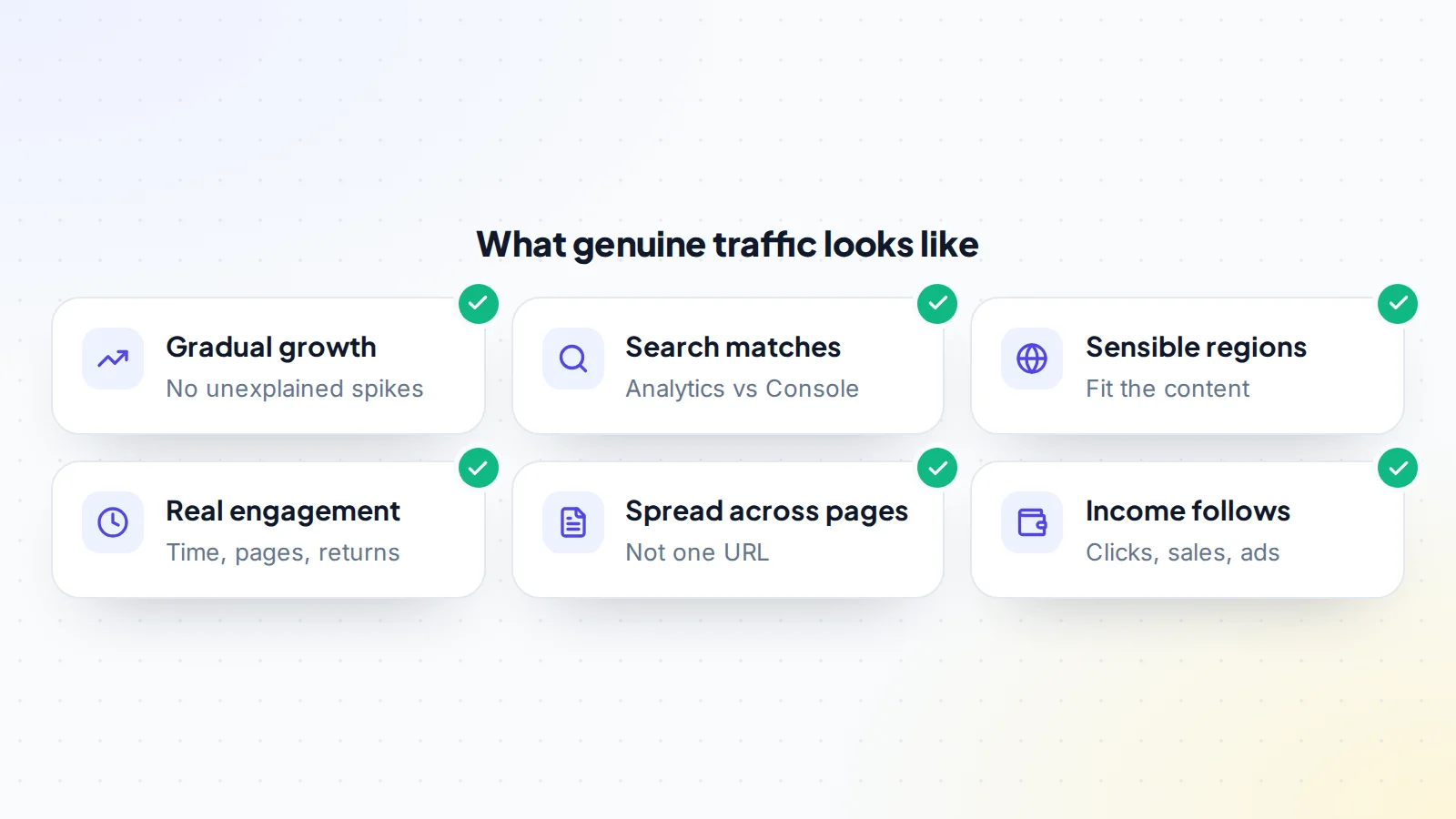
Look at at least 24 months, longer if available, to see seasonality and the effect of past changes. Steady or gradual growth is reassuring. Sharp spikes and drops need explanations: a viral post, a migration, a lost backlink, a search update. Google says its core updates aren’t aimed at particular sites, but they can move traffic noticeably, so ask how the site behaved around them. Mark the dates of major changes the seller mentions and check that the data agrees.
Step 5: Judge the quality of traffic
Not all visits are equal. Check:
- Regions: do visitors come from the countries the content and income are aimed at?
- Engagement: engaged sessions, average engagement time and pages per session. Bots and low-quality traffic tend to have very short, single-page visits.
- Devices and browsers: an unusual concentration in one old browser or device can point to automated traffic.
- Landing pages: is traffic spread across many pages, or concentrated on one?
- Returning visitors: a healthy share suggests real readers.
Allow for seasonality
Many sites have a natural rhythm: gift guides peak before holidays, travel content in spring and summer, tax content early in the year. Comparing one month with the month before can mislead you; compare each month with the same month a year earlier instead. A site listed straight after its best season may look stronger than its yearly average, so base your valuation on twelve-month figures. Ask the seller to explain the pattern, and check that Search Console shows the same seasonal shape for the main queries.
Look at the pages that matter
Site-wide totals can hide what’s really going on. Open the landing pages report and look at the top twenty pages by sessions and by income. Are they still growing, flat or declining? Are they evergreen guides that will keep attracting visitors, or news and trend pieces that fade? A site where most income comes from a few ageing pages needs a plan to refresh them, and that work should be reflected in the price. Our guide to pre-revenue valuation covers sites whose traffic hasn’t turned into income yet.
Put traffic findings in writing
Once you’ve checked the traffic, note the figures you relied on, such as average monthly sessions, the share from search and the top pages, and include them in your offer or letter of intent. If the numbers later turn out to be different, there’s a clear record of what the deal was based on. Our guide to the letter of intent shows how to include them.
Step 6: Link traffic to income
Traffic only matters if it produces income. Compare traffic with the revenue it should generate: ad revenue reports, affiliate dashboards, sales or leads. If traffic doubled but income didn’t move, ask why. If income relies on a few pages, check those pages’ traffic specifically. Our guide to verifying website revenue covers the income checks in detail.
Spotting fake or bought traffic
Some sellers inflate traffic before listing, using bots or cheap paid traffic. Warning signs include:
- A sudden jump in direct or referral traffic shortly before listing.
- Large traffic from regions unrelated to the content.
- Very short engagement times and few pages per session for a whole channel.
- Referral traffic from unfamiliar or unrelated domains.
- Analytics showing growth that Search Console and income don’t reflect.
One sign alone may have an innocent explanation. Several together are a good reason to slow down and ask more questions.
Sites that buy traffic
Some sites pay for traffic on purpose, through search ads, social ads or content promotion, and earn more than they spend. That’s a legitimate model, but it changes how you value the site. Ask for the ad accounts’ spend and results for the same period as the analytics, and calculate profit after ad costs. Check whether ad accounts can move to you, and how results would change if costs rose. Paid traffic that’s presented as organic, by contrast, is a serious warning sign.
If the site uses other analytics tools
Not every site uses Google Analytics. Privacy-focused tools, server logs and platform dashboards such as Shopify’s reports can all be valid sources. The principles are the same: get read-only access or a live view you direct, look at a long history, check sources and engagement, and cross-check with something the seller doesn’t control, such as Search Console or income reports. If two tools are installed, compare them; big differences need an explanation.
Check the tracking setup
Ask how analytics is installed and whether anything changed recently. A tracking code added twice can double-count visits; a filter or a new property can make history look different. Check that the property’s data history goes back as far as the seller says, and that settings such as internal traffic filters are sensible.
How long it takes
For a small site with clean tracking, a careful traffic review takes a few hours once you have access: an hour or two in Analytics, an hour in Search Console, and time to compare with income and ask follow-up questions. Larger sites, or sites with several tools or a messy history, take longer. Build that time into your timetable before you agree a closing date, and don’t let pressure to move fast cut the review short. Traffic problems found after the sale can’t be negotiated away.
If you’re short of time or experience, an adviser who reviews websites regularly can do the analysis for you, but make sure the access they’re given is read-only, and that you see both their findings and the data behind them.
Questions to ask the seller
- Which tools track traffic, and since when?
- Have you changed tracking, domains or site structure in the last two years?
- What explains the biggest spikes and drops in the history?
- Do you buy any traffic, and on which platforms?
- Which pages bring most of the income?
- Can you add me as a Viewer in Analytics and a restricted user in Search Console?
Clear, consistent answers make it far easier to verify website traffic quickly and agree a fair price.
After you buy
At closing, ownership of analytics and Search Console should move to you. In Google Analytics, the seller can make you an administrator and then remove their own access; in Search Console, you can verify ownership yourself, for example through DNS once the domain is yours, and the seller removes their access. Check that tracking keeps working after any hosting or domain change, and note the date of the handover so future comparisons are fair.
A worked example
The details below are made up to show the method.
Leo is buying a gardening site said to have 80,000 monthly sessions. The seller adds Leo as a Viewer in Analytics and a restricted user in Search Console. Organic Search brings 70% of sessions, and Search Console clicks follow the same seasonal pattern. Visitors are mostly in the US, UK and Canada, engagement is steady, and traffic is spread across hundreds of pages.
One thing stands out: direct traffic jumped by 15,000 sessions two months ago, with very short visits from one region. The seller explains it was a spam bot they hadn’t filtered. Leo excludes that period’s direct traffic from the calculations, and the remaining numbers match affiliate income. Leo proceeds with confidence and a fair price.
Verify website traffic: the checklist
- Viewer access to Google Analytics, or a live screen-share you direct.
- Restricted user access to Search Console.
- Traffic by channel reviewed over 12 to 24 months.
- Search Console clicks compared with Organic Search sessions.
- At least 24 months of history read, with changes explained.
- Regions, engagement, devices and landing pages checked.
- Traffic compared with income from each source.
- Warning signs of fake traffic investigated.
- Tracking setup and data history confirmed.
Ready to find your next asset?
Browse listings with verified numbers, ask sellers your questions before you offer, and agree every step in a free Deal Room.
Frequently asked questions
How do I verify a website’s traffic?
Ask for read-only access to Google Analytics and Search Console, check traffic sources and history, cross-check search traffic between the two, judge quality and compare traffic with income.
Are screenshots enough?
No. Screenshots are easy to edit. Use read-only access or a live screen-share you direct.
Why don’t Analytics and Search Console match?
They measure differently, so exact numbers won’t match. They should follow the same trends; large differences need an explanation.
How far back should I look?
At least 24 months, to see seasonality and how the site responded to past changes.
How can I spot bought traffic?
Look for sudden jumps in direct or referral traffic, visits from unrelated regions, very short engagement and growth that doesn’t show up in Search Console or income.
What access should a seller give?
A Viewer role in Google Analytics and a restricted user role in Search Console, removed after the deal or transferred at closing.
Can I verify website traffic without the seller’s help?
Only partly. Third-party estimates and public signals give a rough picture, but reliable verification needs read-only access to the seller’s tools.